
🔍 Finding a Job

Once you’re in the app just click “Find a job” to review the details and select the one(s) you wish to fulfill based on your availability and your own personal criteria, such as location, appointment requirement, or subject matter. Once you have decided which job you would like to complete, you can “claim” it.
Example Job
This is the “Job” view of the request detailed in the Researcher’s Handbook. Explanations for each component are available below.
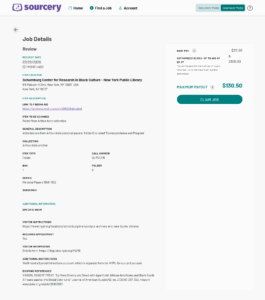
Anatomy of a job
Information you can expect to find in the job details
Jobs are separated into four main parts: information on the material’s location, description of the materials, access information, and payout information.
Item Location
The job details will provide you with the following repository information:
- The name of the institution
- The institution’s street address
Item Description
The job details will provide you with the following information about the material themselves and their location in the institution:
- The title of the folder (if applicable)
- The type of material the Researcher anticipates being in the folder (correspondence, photographs, ephemera, etc.)
- A link to a catalog record or finding aid
- The call number
- The collection title
- The series title(if applicable)
- The subseries title(if applicable)
- The box number
- the folder number
- Any existing reference to the material to provide context (if applicable)
- Any additional details the Researcher thinks you might find helpful
Access Information
The job will provide you with access information input by the Researcher:
- If an appointment is required to review the material
- Methods for requesting the material and/or scheduling a research appointment
Payout Information
Lastly, the job will provide you with payout information:
- The base pay amount
- The maximum number of scans authorized
- The maximum payout you can expect to receive
⚠️Keep in mind that all of the information supplied in the job were input by the Researcher and might contain mistakes or inaccuracies. It’s imperative that you confirm the details of the job are accurate before you claim or begin completing it. For example, if the Researcher indicated that the institution allows walk-ins, it is worth it to ensure this information is correct before foregoing making an appointment.
Other information in the Job Details
Size of request
As previously mentioned, Researchers will authorize a maximum number of scans. One scan is equal to one page or image of material. So, if you find a 2-page letter in your folder that has writing on both sides this will count as 4 discrete scans. Other things that count as a single scan are:
- Contextual scans about the material, like call slips, scans of the folder titles in the box, and scans of the box label(s)
- Multiple scans of a single document taken due to shadow or other issues with the lighting or material themselves
Item types
There are five different item types that Researchers can choose from when creating their request. It’s important you understand the difference between each so you know what to expect when accepting the job.
- Folder: a folder (sometimes also called a “file” depending on the institution) is just one single folder within what is most likely a larger collection. Researchers who choose this option likely know what material they’d like from the folder, don’t need a lot from the collection, or are simply exploring the collection to see if it might have any useful materials.
- Multiple folders: multiple folder requests are exactly how it sounds; a request that includes multiple folders from the collection. These folders can come from the same box or different boxes. Refer to the request details for more information.
- Volume: a “volume” is a bound collection of pages and can include books, manuscripts, scrapbooks, and more.
- Item: an item request is for an item with its own call number or specific archival location.
- Microform: Microform requests can include microfilm or microfiche. Prior experience handling microform is recommended before claiming these requests.
Claimed Jobs
View a tour of the claimed jobs screen here: https://sourceryapp.org/forums/topic/sourcerer-claimed-job-dashboard/.
Once you have claimed a job it will be accessible to you from your Sourcerer dashboard. You will also be able to see additional information when you view the specific job:
- Name of the Researcher
- A messaging feature to allow you to communicate with the Researcher.
- A progress tracker with a list of specific tasks you can check off as you work to complete the job (more on this later):
- Repository contacted
- Appointment requested
- Materials requested from offsite
- Appointment scheduled
- Appointment checked-in
➡️Pro tip: Your first few jobs may take more time as you figure out a workflow that works for you and as you gain more familiarity with the repositories in your local area.